We've all been there: you launch a new website, and it looks perfect on your machine. Then, you check it on your phone, and the content jumps around as the page loads. This frustrating experience is often caused by Cumulative Layout Shift (CLS), and Google Fonts is a common culprit.
- Google Fonts can cause CLS if not implemented carefully.
- Use Lighthouse to identify CLS issues related to Google Fonts.
- Implement
font-display: swapto mitigate CLS.
What is Cumulative Layout Shift (CLS)?
Cumulative Layout Shift (CLS) measures the instability of content on a webpage. It quantifies how much elements unexpectedly move during the page lifecycle. A low CLS score is crucial for a good user experience and is a direct ranking factor for Google's search algorithm. A high CLS score indicates a poor user experience, which can frustrate users and negatively impact your SEO.
The Core Web Vitals, including CLS, are defined by web.dev. The goal is to provide a fast and stable experience. Here are the CLS thresholds:
- Good: CLS score of 0.1 or less
- Needs Improvement: CLS score between 0.1 and 0.25
- Poor: CLS score of 0.25 or greater
CLS is calculated by summing the layout shift scores for every unexpected movement that occurs during the page load. The layout shift score of an element is calculated using two factors:
- Impact Fraction: The area the element occupies in the viewport before the move.
- Distance Fraction: The distance the element has moved relative to the viewport.
For example, if an image shifts downwards by 50% of the viewport height, and the image takes up 25% of the viewport, the CLS score would be 0.5 * 0.25 = 0.125. This is a "Needs Improvement" score.
How Google Fonts Can Cause CLS
Google Fonts, while offering a vast library of beautiful typefaces, can introduce CLS if not implemented correctly. The problem arises because the browser doesn't know the font's dimensions until it's downloaded and applied. This can cause a flash of invisible text (FOIT) or a flash of unstyled text (FOUT), both of which can lead to layout shifts.
Here's how it typically happens:
- The browser starts rendering the page.
- It encounters a
<link>tag for a Google Font in the<head>. - The browser downloads the font.
- Once the font is downloaded, the browser applies it to the text, which may change the dimensions of the text elements.
- This change in dimensions causes the content to shift, resulting in CLS.
This is especially common with headings and other large text elements. A small shift can be enough to trigger a poor CLS score.
Identifying CLS Issues with Lighthouse
The easiest way to identify CLS issues related to Google Fonts is using Chrome DevTools and its Lighthouse audit. Lighthouse provides a detailed report of your site's performance, including CLS metrics and specific recommendations. You can run a Lighthouse audit in several ways:
- Chrome DevTools: Right-click on a webpage, select "Inspect," go to the "Lighthouse" tab, and generate a report.
- PageSpeed Insights: Enter your website's URL on PageSpeed Insights.
- PerfBee's Lighthouse audits: PerfBee's Lighthouse audits are integrated into the dashboard, making it easy to see CLS metrics.
When you run a Lighthouse audit, pay close attention to the CLS score. If it's above 0.1, you have a problem. Lighthouse will also highlight the elements contributing to the CLS, often including Google Fonts.
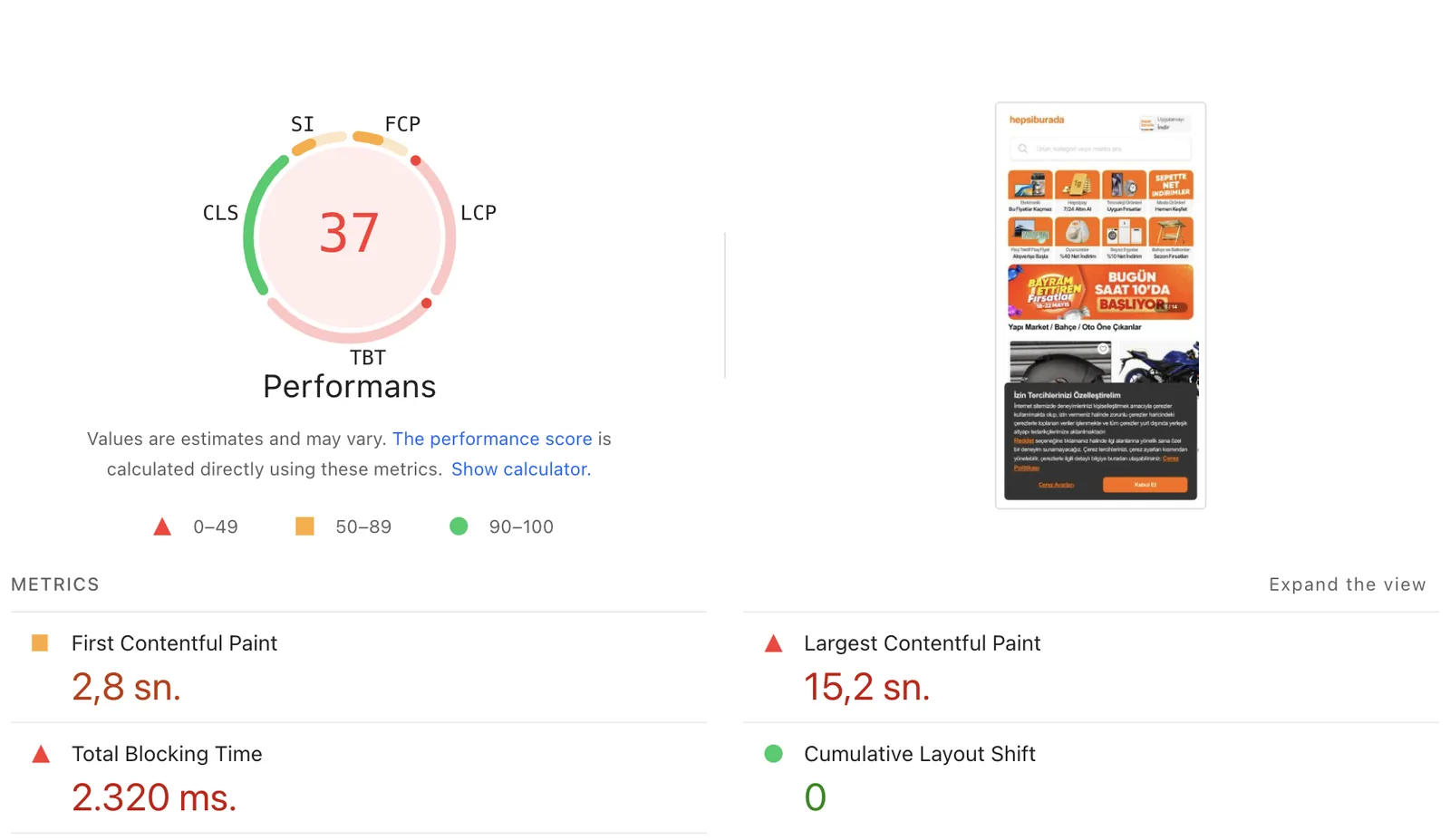
The report will usually show the specific font files and the elements they're affecting. This will help you pinpoint the source of the problem.
Analyzing CLS in Chrome DevTools
Chrome DevTools offers a more granular way to analyze CLS. After running a Lighthouse audit, you can go to the "Performance" tab and record a page load. This will create a waterfall chart, showing the loading of resources and any layout shifts that occur.
Look for the "Layout Shift" events in the timeline. These events will show you exactly when and where the layout shifts are happening. You can click on each event to see the details, including the elements that were affected.
This detailed analysis helps you understand the root cause of the CLS, which is often the Google Font loading.
Mitigating CLS Caused by Google Fonts
Fortunately, there are several ways to mitigate CLS caused by Google Fonts. The best approach depends on your specific website and how you're using the fonts.
Use font-display: swap
The most effective and recommended solution is to use the font-display: swap CSS property. This tells the browser to immediately render text with a system font while the custom font is downloading. Once the custom font is ready, it swaps in, but the initial rendering prevents a flash of invisible text (FOIT) and reduces the likelihood of CLS.
Here's how to implement it. When including the Google Font in your HTML, add &display=swap to the URL:
<link rel="preconnect" href="https://fonts.googleapis.com">
<link rel="preconnect" href="https://fonts.gstatic.com" crossorigin>
<link href="https://fonts.googleapis.com/css2?family=Roboto:wght@400;700&display=swap" rel="stylesheet">
This tells the browser to:
- Preconnect to the Google Fonts servers.
- Fetch the font files.
- Use the swap strategy.
The font-display: swap property is also supported when using the @import rule in your CSS:
@import url('https://fonts.googleapis.com/css2?family=Roboto:wght@400;700&display=swap');Preload Fonts
Preloading fonts can also help to reduce CLS by ensuring the browser prioritizes the download of the font files. This is particularly useful if the font is used for critical text, such as headings.
To preload a Google Font, add a <link> tag with rel="preload" and as="style" in the <head> of your HTML, like this:
<link rel="preload" href="https://fonts.googleapis.com/css2?family=Roboto:wght@400;700&display=swap" as="style">Preloading can speed up the font download, but it's important to use it judiciously. Preloading too many resources can negatively impact performance.
Self-host Google Fonts
Another option is to self-host Google Fonts. This involves downloading the font files and serving them from your own server. Self-hosting gives you more control over the font loading process and can improve performance. You can then use the font-display: swap property in your CSS.
To self-host Google Fonts:
- Download the font files (TTF, WOFF2) from Google Fonts.
- Upload the font files to your server.
- Update your CSS to point to the new font file locations.
- Use
font-display: swap.
Self-hosting can be more complex to set up, but it offers the best performance and control.
Testing and Monitoring
After implementing any of these solutions, it's crucial to test your website to ensure the CLS issues are resolved. Run a new Lighthouse audit and check the CLS score. Also, monitor your website's performance in the field, using Real User Monitoring (RUM) tools. This will give you a more accurate picture of how your website is performing for real users.
Regularly monitoring your CLS score is a good practice. It allows you to catch any regressions and ensure your website remains performant.
We built the Site Crawler feature in PerfBee to surface exactly this kind of issue across thousands of pages — see how it works.
Fixing CLS issues related to Google Fonts is a critical step in optimizing your website's performance and providing a better user experience. By understanding how Google Fonts can cause layout shifts and implementing the solutions outlined above, you can significantly improve your Core Web Vitals scores.
To ensure your website's CLS score remains optimal, make it a habit to check your Lighthouse report at least once a week. This simple step will help you catch any regressions early and keep your website performing at its best.