- WebMCP is a proposed web standard for exposing tools to AI agents in the browser. A plain HTML form becomes a tool when it carries
toolnameandtooldescription. - Chrome has an origin trial for it, open from Chrome 149. Chrome says it is experimental and subject to change.
- The only agents Chrome's WebMCP page names are example developer extensions, and no Chrome page we read says the attributes are on by default for everyone, so treat them as an experiment.
WebMCP lets a website describe its forms to AI agents in the browser, and the declarative way to do it is two attributes on the <form> tag: toolname and tooldescription. Chrome's WebMCP page calls it "a proposed web standard to help you build and expose structured tools for AI agents". This post shows the markup, how Chrome builds the tool from it, and what is not known yet.
What WebMCP is and where it stands
Chrome describes the declarative part as "Add annotations to a standard HTML forms to create a WebMCP tool." The browser, not your server, offers the form to an agent as a tool. On status, Chrome is plain: "Join the WebMCP origin trial from Chrome 149", and "WebMCP is under active discussion and subject to change in the future." Chrome's guide to agentic forms repeats it: it "covers an active Origin Trial, which is experimental and subject to change."
How to mark up a form with toolname and tooldescription
The guide lists four attributes:
toolname: "Unique name for the tool."tooldescription: "What the tool does and when an agent should use it." The guide says not to list the form's fields, options or limits in it.toolautosubmit(optional): "If present, the agent can submit the form without waiting for user interaction."toolparamdescription(optional): "Provides a way to define a property description within the JSON Schema."
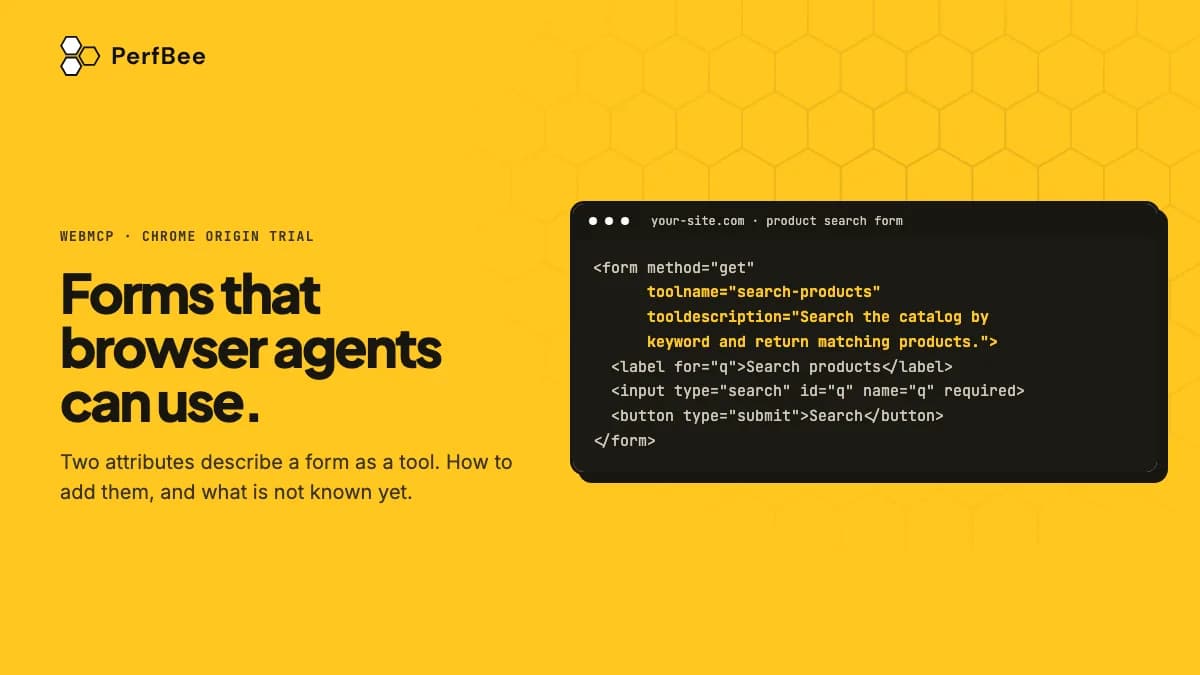
A product search form on your-site.com would look like this:
<form method="get"
      toolname="search-products"
      tooldescription="Search the catalog by keyword and return matching products.">
  <label for="q">Search products</label>
  <input type="search" id="q" name="q" required>
  <button type="submit">Search</button>
</form>
Leave toolautosubmit off unless you want an agent to submit without a person confirming. A form that places an order or sends a message is the wrong place for it.
How Chrome builds the tool's inputs from your fields
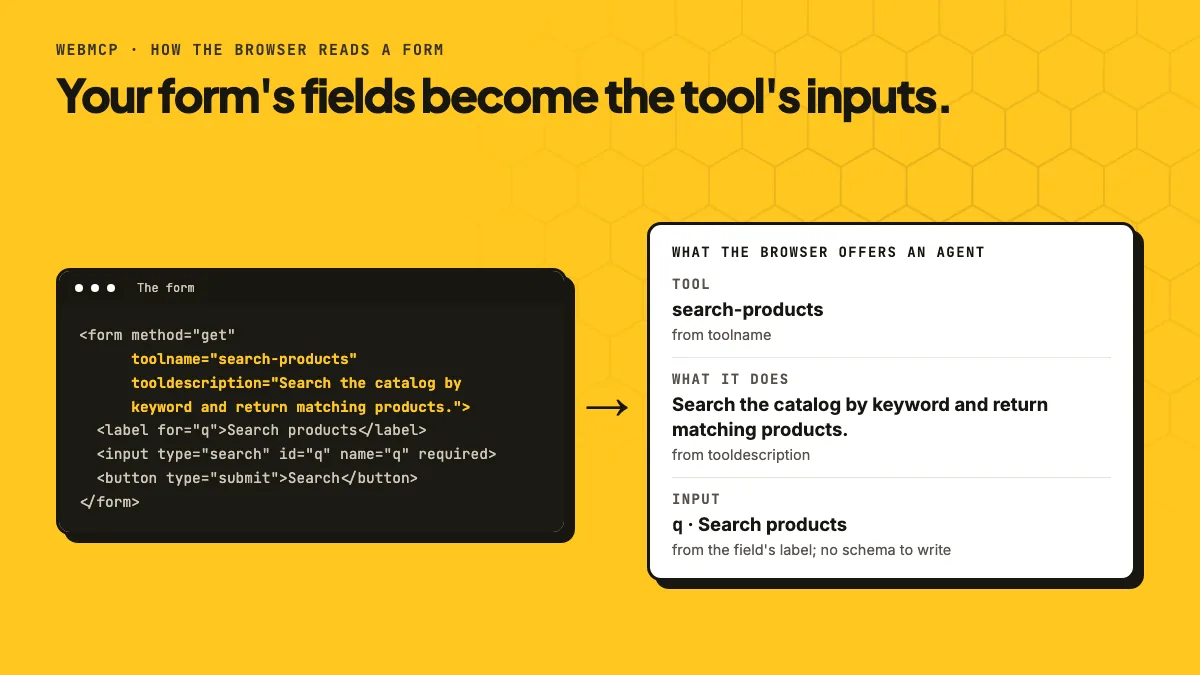
You do not write a schema. Per the guide, "The browser synthesizes a JSON Schema from the form inputs and handles agent interactions." For each parameter it uses toolparamdescription if present, otherwise the text of the field's label, and it falls back to aria-description. For radio buttons you can put toolparamdescription on the parent <fieldset>. So a form with real <label> elements is already most of the way there. That is also what screen reader users need from it.
The attributes do no harm elsewhere: "Browsers that do not support WebMCP will ignore the tool* attributes", and the form works as a normal form.
What is not known yet
- Which agents read it. The only agents Chrome's WebMCP page names are example developer extensions for testing, which send prompts to Gemini by default.
- When it ships. The origin trial is open from Chrome 149. The pages we read give no release for everyone, and say the API is subject to change.
- Whether the attribute names stay. "Subject to change" means exactly that.
Our view: it is cheap to add to one or two forms you would be glad for an agent to use, such as a search or a quote request, and not worth a site-wide project until an agent people use every day reads it.
How PerfBee counts forms with these attributes
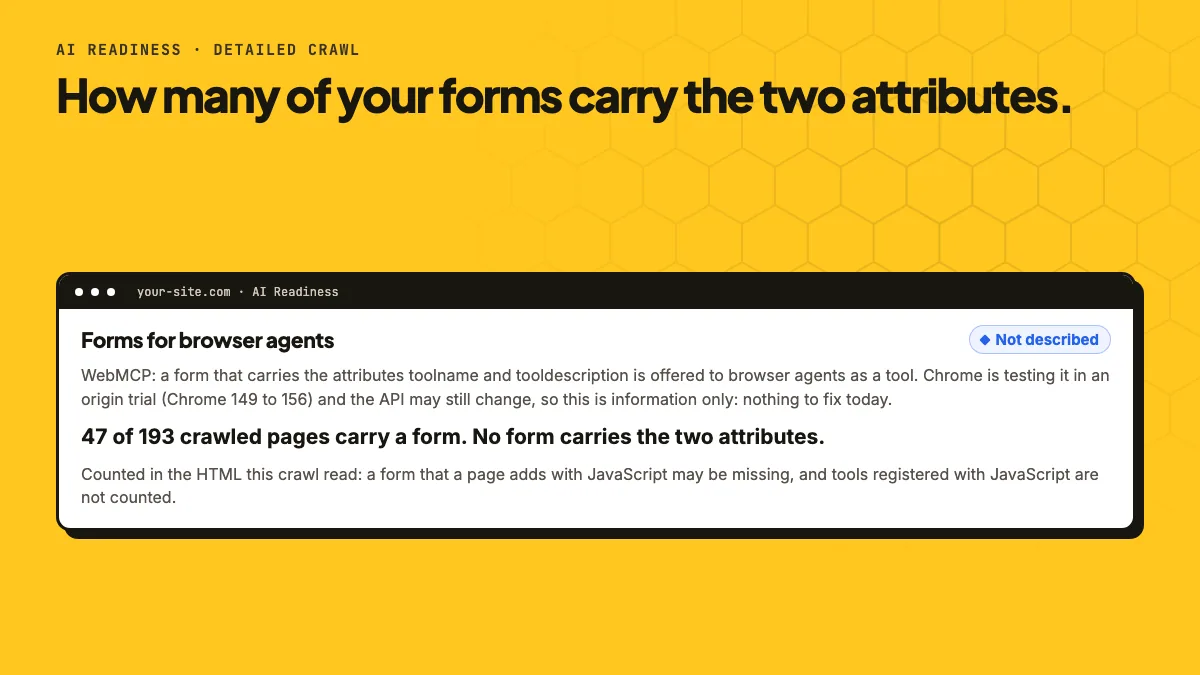
The AI Readiness tab of a Detailed scan has a block, Forms for browser agents, that says how many crawled pages carry a form and on how many of them a form carries both toolname and tooldescription. AI Readiness shows it as information only, with no fix and no score, and it counts pages, so a search form in your template is counted once on every page that carries it. It reads the HTML the crawl fetched, so forms a script adds later are not counted.
If you add the attributes to one form this week, test it in Chrome with the origin trial on, and look at the tool Chrome builds from your labels before you add a second.